How to Give Shopify Collaborator Access Safely (Step-by-Step Guide)
Key Takeaways
- Shopify Collaborator Access allows developers, agencies, and freelancers to work on your store without sharing main login credentials or passwords.
- Collaborators do NOT count toward your plan’s Staff Account limits.
- You can secure access requests using a 4-digit Collaborator Request Code found under
Settings > Users and permissions. - Store owners retain 100% control and can assign granular permissions or revoke access at any time with a single click.
What is Shopify Collaborator Access and Why Use It?
Shopify Collaborator Access is a dedicated authorization framework designed specifically for store owners to grant third-party professionals—such as agency partners, freelance developers, SEO specialists, and technical marketers—secure entry to their Shopify admin dashboard.
Unlike standard staff invites, collaborator access is requested directly through a certified Shopify Partner Account. This eliminates the need to expose owner credentials, share passwords via unencrypted messages, or upgrade to a higher-tier Shopify plan to purchase additional staff seats.
Collaborator Accounts vs. Staff Accounts: Key Differences
| Feature | Collaborator Account | Staff Account |
| Primary User | External Agencies, Freelancers, Developers | Internal Employees & In-House Team |
| Impact on Staff Limits | Does NOT count against staff limits | Counts directly against plan staff limits |
| Initiation Method | Partner sends request via Partner Dashboard | Store Owner sends email invitation |
| Security Verification | Protected by optional 4-digit code | Invited directly via email |
| Billing Access | Restricted / No primary financial access | Customizable permissions |
| Cost | 100% Free | Requires higher plan tiers for more seats |
How Store Owners Grant & Approve Shopify Collaborator Access
Follow these simple steps as a Shopify Store Owner to review, customize permissions for, and accept a collaborator request.
Step 1: Locate Your Shopify Store URL and 4-Digit Collaborator Request Code
- Log into your Shopify Admin Panel.
- Click Settings (gear icon at the bottom left corner).
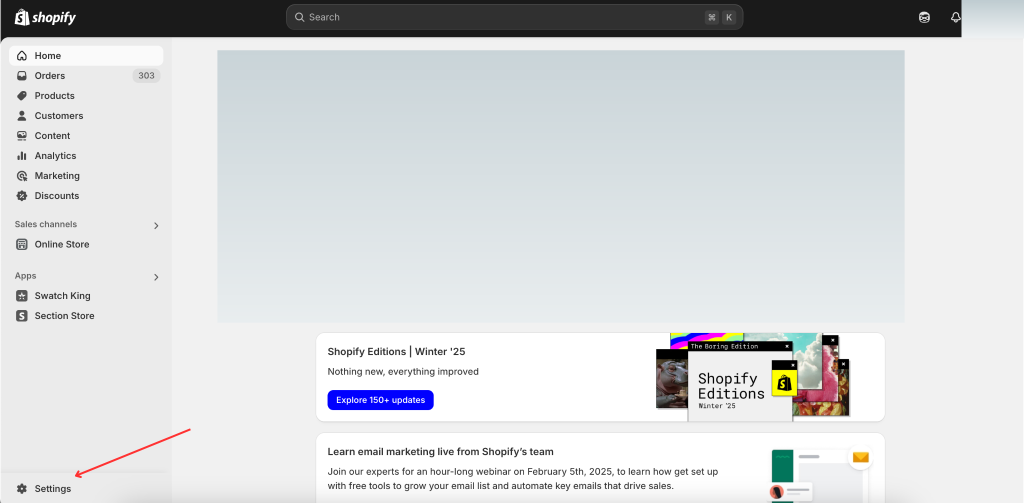
- Select Users and permissions.
- Scroll down to the Collaborators section.
- Check your Collaborator Request Code settings:
- Option A: Select “Anyone can send a collaborator request” (Less secure).
- Option B: Select “Only people with a collaborator request code can send a request” (Recommended).
- Copy your 4-digit request code and your primary
.myshopify.comstore URL.
Step 2: Share Details with Your Developer, Agency, or Partner
Send your developer or agency partner two items:
- Your
.myshopify.comURL (e.g.,your-store-name.myshopify.com). - Your 4-digit Collaborator Request Code (if enabled).
Warning: Never share your main account password, two-factor authentication backup codes, or owner email login credentials with outside freelancers or agencies.
Step 3: Review and Accept the Collaborator Request in Shopify Admin
Once your developer submits their request:
- Open Shopify Admin and navigate to Settings > Users and permissions.
- Under Collaborators, locate the pending request under Pending Requests.
- Click on the collaborator’s name or request card to view request details.
Step 4: Configure Specific Permissions & Security Controls
- Review the requested permissions (e.g., Themes, Products, Pages, Apps, Orders).
- Uncheck any sensitive permissions that the agency or developer does not need to complete their project (e.g., Customer Data, Financial Reports, Store Settings).
- Click Accept Request.
How Freelancers & Agencies Request Collaborator Access (Partner Dashboard)
If you are a freelancer, Shopify developer, or agency account manager, follow this workflow to request access from a client:
- Log into your Shopify Partner Dashboard.
- Select Stores from the left navigation sidebar.
- Click Add store > Request access to store.
- Enter the client’s store URL (
yourstore.myshopify.com). - Enter the client’s 4-digit Collaborator Request Code (if required).
- Select the Permissions you require to complete the contract work (e.g., Theme access for theme customization, Apps access for app setup).
- Include a personalized message explaining who you are.
- Click Save to submit the request to the client.
Security Best Practices When Granting Access
Applying the Principle of Least Privilege (PoLP) guarantees maximum protection against unauthorized changes, data loss, or data breaches.
- Grant Minimal Necessary Permissions: If a hiring specialist is working on theme design, grant access to Themes and Navigation only. Do not grant access to order data or customer email lists.
- Require a 4-Digit Request Code: Keep the request code active to protect your store from automated spam requests from unknown entities.
- Audit Active Collaborators Monthly: Review active accounts inside
Settings > Users and permissionsevery 30 days and delete inactive partner accounts. - Monitor Store Activity Logs: Navigate to
Settings > Activity Logto review all structural updates, theme edits, and setting modifications performed by external accounts.
How to Revoke or Edit Collaborator Access in Shopify
When a contract ends or a project reaches completion, revoke external access immediately:
- Go to Settings > Users and permissions in your Shopify Admin.
- Scroll to Collaborators and click the user or agency name.
- To adjust privileges: Modify checkmarks under permissions and click Save.
- To remove completely: Scroll to the bottom of the user page and click Remove Collaborator Access.
- Confirm removal when prompted. Access is terminated instantly.
Troubleshooting Common Shopify Access Issues
1. “4-Digit Code is Invalid or Incorrect”
- Cause: The collaborator entered the wrong code, or the store owner generated a new request code after sharing the old one.
- Fix: Go to
Settings > Users and permissions > Collaborators, click Generate new code, and share the updated code with the partner.
2. Collaborator Request Not Appearing in Shopify Admin
- Cause: The partner sent the request to the custom domain (e.g.,
brand.com) instead of the primary.myshopify.comdomain. - Fix: Ensure the partner uses the original
.myshopify.comhandle in their Partner Dashboard request.
3. “Staff Account Limit Reached” Warning
- Cause: Trying to add an external developer using a standard Staff Invite email instead of a Collaborator Request.
- Fix: Ensure the developer sends a request via their Shopify Partner Dashboard rather than being invited as a staff member.
Summary Checklist: Granting Collaborator Access
- Navigate to
Shopify Admin > Settings > Users and Permissions. - Locate your
.myshopify.comURL and 4-digit Collaborator Request Code. - Send these details securely to your partner or developer.
- Wait for the partner request to appear under
Pending Requests. - Review and limit permissions according to project scope.
- Click Accept Request.
- Revoke access upon project completion.
Frequently Asked Questions (FAQs)
How do I give collaborator access on Shopify?
To give collaborator access on Shopify, share your .myshopify.com store URL and 4-digit Collaborator Request Code with your developer or agency. Once they submit a request from their Partner Dashboard, accept it in your Shopify Admin under Settings > Users and permissions.
What is the 4-digit collaborator code in Shopify?
The 4-digit Collaborator Request Code is a security PIN in Shopify that prevents unauthorized requests. Store owners can find or generate this code in Shopify Admin by going to Settings > Users and permissions under the Collaborators section.
Do collaborator accounts count against Shopify staff limits?
No, collaborator accounts do not count against your Shopify plan’s staff account limits. Unlimited certified partners can access your store without requiring a subscription upgrade.
What is the difference between a staff account and a collaborator account in Shopify?
A staff account is intended for internal employees and counts toward your plan’s staff limits. A collaborator account is intended for external partners, agencies, and freelancers using an official Shopify Partner Dashboard.
Is it safe to grant collaborator access to external developers?
Yes, granting collaborator access is extremely safe when best practices are followed. It eliminates the risk of sharing primary account passwords. You control exactly which store areas the developer can view or modify, and you can revoke access at any time.
Can a collaborator access my Shopify payout and bank account details?
No. Collaborators cannot view sensitive payment gateway details, payout bank account information, or ownership transfer options unless specifically granted high-level administrative permissions. Keep payment permissions unchecked to safeguard financial data.
Why is my collaborator code showing as invalid?
The code will show as invalid if a new code was generated after the original was sent, or if the developer typed it incorrectly. Go to Settings > Users and permissions in Shopify Admin, generate a new 4-digit code, and re-send it to your developer.
Can a collaborator delete my Shopify store?
No. Collaborators cannot delete your Shopify store, transfer ownership, change store plan subscriptions, or alter store owner banking information. Only the Account Owner can execute critical operations.
Request Expert Shopify Assistance →
Need Expert Help Customizing or Optimizing Your Shopify Store?
Grant our certified developers collaborator access and get a free technical performance audit!
👉More Articles
How to Activate Cash on Delivery (COD) in Shopify (2026 Guide)
How to Hide Cash on Delivery (COD) for Specific Products on Shopify