How do you activate Cash on Delivery (COD) in Shopify?
To activate Cash on Delivery in Shopify, log in to your Shopify Admin panel. Navigate to Settings, then click on Payments. Scroll down to the Manual payment methods section and click the Add manual payment method dropdown. Select Cash on Delivery (COD). Enter any specific payment instructions you want your customers to see at checkout, and finally, click Activate Cash on Delivery (COD).
Offering Cash on Delivery (COD) is one of the most effective ways to build trust and increase conversion rates, especially in markets like India, the Middle East, and Southeast Asia.
However, setting it up correctly is vital to protect your store from fake orders and high Return to Origin (RTO) costs. In this comprehensive guide, we will walk you through the exact steps to enable COD, how to set up COD fees, and how to protect your profit margins.
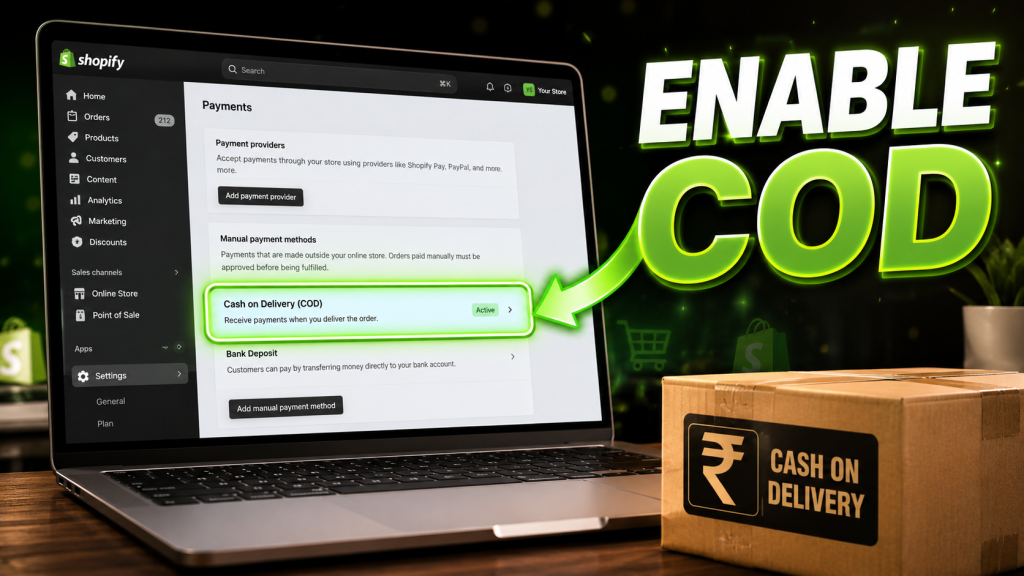
Table of Contents
- What is Cash on Delivery (COD)?
- Pros and Cons of Offering COD
- Step-by-Step Guide: How to Activate COD in Shopify
- How to Add an Extra Fee for COD Orders
- How to Prevent Fake COD Orders & Reduce RTO
- Best Shopify Apps for Managing COD
- Summary & Conclusion
What is Cash on Delivery (COD)?
Cash on Delivery (COD) is a manual payment method where a customer pays for their purchase at the time of physical delivery rather than paying upfront online. The payment is typically collected by the shipping courier and remitted back to the merchant.
In Shopify, COD is categorized as a Manual Payment Method. Because the payment happens outside of Shopify’s native online checkout, Shopify does not automatically mark these orders as “Paid.” You must manually update the order status once the courier confirms the cash has been collected.
Pros and Cons of Offering COD
Before flipping the switch on COD, it is important to understand the business implications.
| Pros of Cash on Delivery | Cons of Cash on Delivery |
| Higher Conversion Rates: Customers are more likely to buy if they don’t have to risk entering card details. | High RTO Risk: Customers may refuse the package at the door, leaving you to pay shipping costs. |
| Builds Trust: Excellent for new brands that haven’t established industry credibility yet. | Cash Flow Delays: Couriers often take 1 to 2 weeks to remit COD funds back to your bank account. |
| No Chargebacks: Eliminates the risk of credit card fraud and forced chargebacks. | Additional Courier Fees: Shipping partners usually charge a premium handling fee for cash collection. |
| Accessible: Reaches unbanked customers or those without credit cards. | Manual Tracking: Requires manual reconciliation of payments in your Shopify dashboard. |
💡 Pro Tip: If you are expanding into India or the MENA (Middle East and North Africa) region, COD is not just an option; it is a strict requirement to compete. In some of these regions, COD accounts for over 60% of all e-commerce transactions.
Step-by-Step Guide: How to Activate COD in Shopify
Activating COD requires no coding or technical skills. Follow these exact steps:
- Log in to Shopify Admin: Go to your Shopify dashboard.
- Navigate to Settings: Click on the Settings gear icon located at the bottom left of your screen.
- Select Payments: In the left-hand sidebar, click on Payments.
- Find Manual Payment Methods: Scroll down past the primary payment gateways until you see the Manual payment methods section.
- Add Cash on Delivery: Click the drop-down menu that says Add manual payment method and select Cash on Delivery (COD).
- Add Instructions (Crucial): Fill out the Additional details (displays at checkout) and Payment instructions (displays on the order confirmation page).
- Activate: Click the green Activate Cash on Delivery (COD) button to save your changes.
✅ Expert Tip: In your “Payment instructions” field, state clearly: “Please ensure you have exact change available at the time of delivery. A confirmation call/SMS will be sent before dispatch.” This sets expectations and reduces delivery failures.
How to Add an Extra Fee for COD Orders
One of the biggest complaints from Shopify merchants is that Shopify does not natively allow you to add a surcharge for COD orders at checkout.
To offset the extra fees charged by your courier, you have two workarounds:
Method 1: Use a Shipping Rate Workaround (Free)
- Go to Settings > Shipping and delivery.
- Create a new shipping zone or edit an existing one.
- Add a rate titled “Standard Shipping (Cash on Delivery)” and set the price slightly higher than prepaid shipping.
- Limitation: Customers can still choose standard shipping and select COD at the end. It relies on the honor system.
Method 2: Use a Third-Party App (Recommended)
To strictly enforce a COD fee, you need an app. Apps like Partialy allow you to automatically inject a flat fee or percentage-based fee directly into the checkout total when the user selects COD.
How to Prevent Fake COD Orders & Reduce RTO
⚠ Common Mistake: Enabling COD without a verification process will result in “Return to Origin” (RTO) rates of 20% to 40%, which can bankrupt a small business due to wasted shipping fees.
Here is how you protect your store:
- Implement OTP Verification: Use an app to send a One-Time Password (OTP) via SMS or WhatsApp. The order only enters your fulfillment queue after the customer enters the code.
- Restrict COD by Zip Code: Not all areas are serviceable by COD couriers. Use apps to block COD options for zip codes known for high return rates.
- Limit COD to Specific Order Values: Do not offer COD on orders under $10 (shipping costs eat the margin) or over $300 (too much risk).
- Call Before Dispatch: Have your customer support team manually call high-value COD buyers to confirm their address and intent to purchase.
Best Shopify Apps for Managing COD
To turn COD from a liability into a profitable growth lever, consider installing one of these highly-rated Shopify apps:
- Partialy: Best for adding custom surcharges, hiding COD based on order value, and creating custom COD rules.
- Advanced Cash on Delivery (India): Built by Shopify specifically for the Indian market to verify pin codes and calculate shipping rates dynamically.
- COD Verify / OTP Verify apps: Best for sending automated SMS/WhatsApp messages to confirm orders before you print the shipping label.
⭐ Best Practice: Combine a COD Fee app with an OTP Verification app. Charging a small fee (even $2) filters out non-serious buyers, while OTP ensures the phone number provided is legitimate.
FAQ
1. How do I turn on Cash on Delivery in Shopify?
Go to Settings > Payments > Manual Payment Methods. Click “Add manual payment method,” select “Cash on Delivery,” enter your instructions, and click Activate.
2. Is Cash on Delivery free to use on Shopify?
Yes, Shopify does not charge transaction fees for manual payment methods like Cash on Delivery. However, your shipping courier will likely charge you a cash handling fee.
3. Can I charge an extra fee for COD in Shopify?
Shopify does not have a built-in feature to charge a COD fee. You must use a third-party app like Releasit or create a custom shipping rate to add a surcharge.
4. How do I mark a COD order as paid in Shopify?
Because COD is a manual payment, Shopify won’t know when the courier gives you the cash. You must go to the Orders tab, select the specific order, and click “Mark as Paid.”
5. How do I disable Cash on Delivery in Shopify?
Go to Settings > Payments. Scroll down to Manual payment methods, click “Manage” next to Cash on Delivery, and click “Deactivate.”
6. Why is Cash on Delivery not showing at checkout?
Ensure the payment method is marked as “Active” in your settings. Also, check if you have any third-party apps blocking COD based on specific conditions or locations.
7. Can I restrict COD to certain countries or states?
Natively, Shopify applies manual payments globally. To restrict COD to specific regions, zip codes, or countries, you must install a custom COD app from the Shopify App Store.
8. Can I offer COD for specific products only?
Not natively. You will need a third-party app to hide the COD payment option at checkout based on the specific SKUs or tags in the customer’s cart.
9. What is the Advance Cash on Delivery app?
It is an app developed specifically for Shopify merchants in India that allows for pin-code checking, COD fees, and deeper integration with Indian shipping carriers.
10. What does RTO mean in ecommerce?
RTO stands for Return to Origin. It happens when a COD order is shipped, but the customer refuses delivery or is unavailable, forcing the courier to return the item to you at your expense.
11. How can I stop fake COD orders?
The best way to stop fake COD orders is to require SMS or WhatsApp OTP (One Time Password) verification before the order is processed for fulfillment.
12. Does Shopify support Partial COD?
Partial COD (where a customer pays a small deposit upfront and the rest in cash) is not supported natively. It requires highly specialized third-party app like Partialy.
13. Do COD orders affect my Shopify analytics?
Yes. COD orders show up as unpaid but confirmed orders. Once you manually mark them as paid, they will fully reflect in your revenue reports.
14. What instructions should I write for COD customers?
Ask them to keep exact change ready, confirm that their phone number is correct for courier updates, and state that unverified orders may be canceled.
15. Can I use COD with Shopify POS?
Yes, if you are selling in person using Shopify POS, you can accept cash and the inventory/sales data will sync seamlessly with your online dashboard.
Summary
Enabling Cash on Delivery in Shopify is a simple process managed entirely through the Settings > Payments tab. While it is incredibly powerful for increasing sales and customer trust, it requires proactive management.
Ensure you communicate clearly with customers via checkout instructions, consider using apps to charge a COD premium, and always verify orders before shipping to minimize your RTO costs. By following these steps, you can offer flexibility to your customers without sacrificing your bottom line.
👉 More Articles
How to Give Shopify Collaborator Access Safely (Step-by-Step Guide)
How to Hide Cash on Delivery (COD) for Specific Products on Shopify